UX audits are expensive. You either hire a consultant, run user testing sessions, or spend days going screen by screen through your app. But there's a shortcut that catches the most common problems in minutes.
Record a screen recording of your app's key flows. Export it with ReplayDoc. Hand the structured documentation to Claude Code, Codex, Gemini, or any AI assistant and ask it to find the friction.
Five patterns show up over and over.
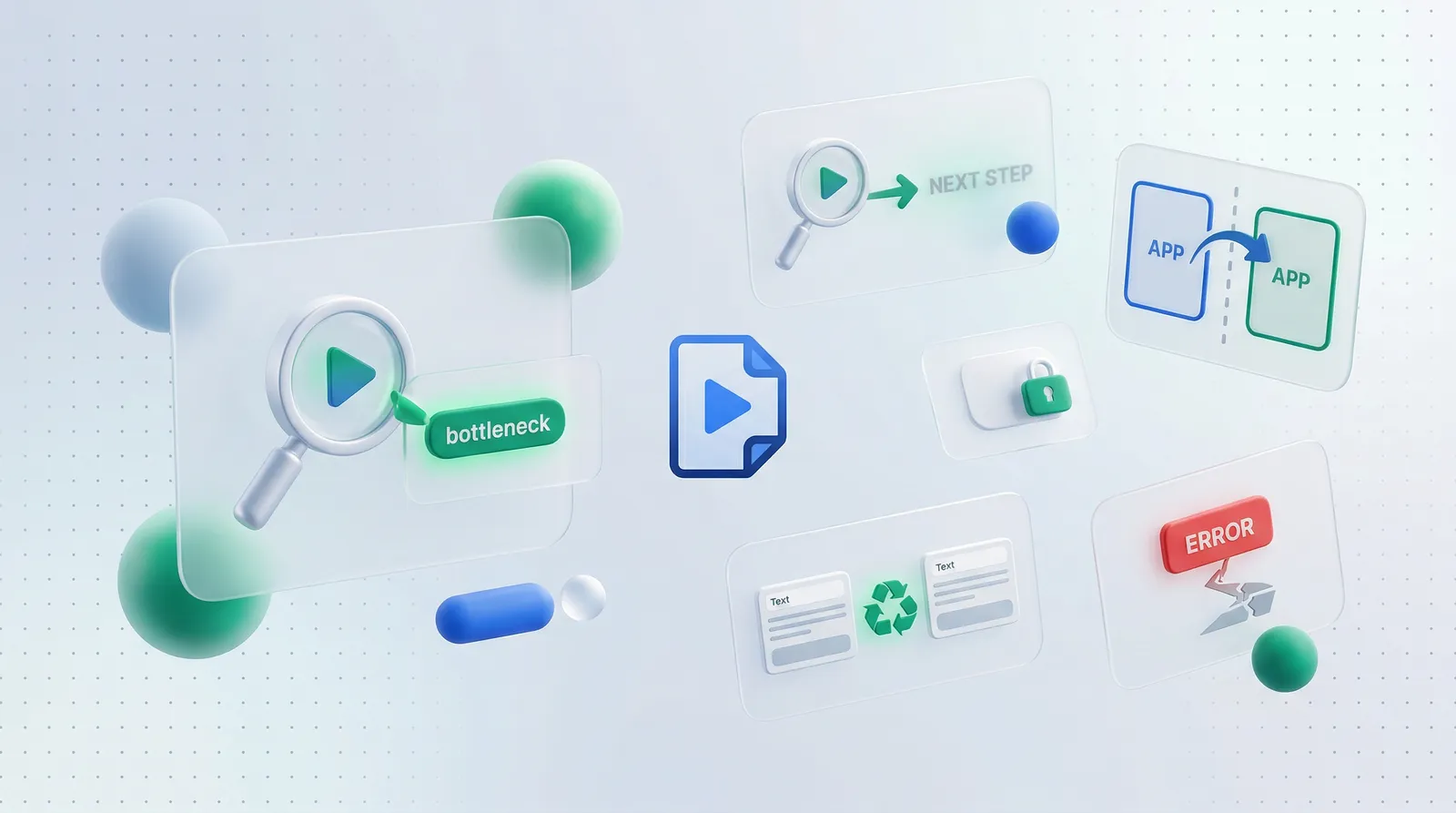
1. The Invisible Next Step
The user completes an action but the app doesn't clearly indicate what to do next. They've submitted a form, but there's no confirmation. They've uploaded a file, but there's no progress indicator. They've completed onboarding, but the empty state doesn't guide them.
In a walkthrough, this shows up as a pause. A moment where the recording lingers on a screen because even you, the person who built the app, had to think about what comes next.
AI flags these dead-end screens when it analyzes the walkthrough. The fix is usually simple: after a form submission, add a success message with a clear next action. "Invoice created. Send it now?" One sentence and one button.
2. The Context Switch Tax
Every time users leave your app to complete a task, you lose them. Copying data from one screen to paste into another. Opening a new tab to look something up. Switching to email to verify something.
Walkthroughs make context switches visible. You can literally see yourself tabbing away from the app and coming back. Each switch is a potential drop-off point.
The AI spots these moments and suggests inline solutions: autocomplete fields, embedded lookups, or prefilled data from previous steps. Say the recording shows you copying a client email from a CRM to paste into a send form. Add an autocomplete field that pulls from your client list. One field change, zero tab switches.
3. The Hidden Feature
You built a powerful feature, but nobody uses it because they can't find it. It's buried three clicks deep, hidden behind a menu, or labeled with jargon that only your team understands.
In a walkthrough, hidden features show up when the recorder has to explicitly hunt for something. If you built the app and you're searching for your own feature, your users don't stand a chance.
AI flags navigation paths that take more than 2 clicks to reach commonly needed features.
If the recording shows you clicking Settings > Advanced > Export to reach something people use weekly, that's too deep. Add it to the main nav or create a keyboard shortcut. Two clicks maximum for anything used regularly.
4. The Repetitive Input
Users entering the same information in multiple places. Filling out a form that asks for data you already have. Manually copying values between fields on the same page.
Walkthroughs capture every keystroke and click. When the AI sees the same information typed twice, or data being copy-pasted within the same flow, it flags it.
Classic example: billing address re-entered after shipping address. A "Same as shipping" checkbox replaces 30 seconds of typing with one click.
5. The Error Recovery Gap
What happens when something goes wrong? In most apps, not much. An error message appears, but there's no clear path back to a working state. Users are stuck.
Walkthroughs that include error states are the most useful ones you can capture. They show exactly what the error experience looks like and how difficult it is to recover. If the recorder has to reload the page, navigate back, or re-enter data, that's a UX failure.
AI spots error states in the walkthrough and evaluates the recovery path. Good recovery means three things: a clear message, preserved user input, and an obvious next action.
If the recording shows a form error that clears all fields, that's the worst case. Preserve the input, highlight only the field that needs fixing, and say "Card number is invalid" instead of "Submission failed."
Which Bottlenecks to Fix First
Not all UX issues are equal. Prioritize based on two factors:
- Frequency: How often do users hit this screen? A bottleneck in your signup flow matters more than one in a settings page.
- Severity: Does the user get stuck, or just slowed down? Dead ends and data loss are critical. Extra clicks are annoying but survivable.
Fix high-frequency, high-severity issues first. Record again after the fix to confirm it's actually better.
Run Your Own UX Audit with a Screen Recording
Pick your app's most important flow. Record yourself going through it, including the parts that feel clunky. Upload to ReplayDoc, export the structured walkthrough, and ask AI to identify friction points.
You'll find issues you've been blind to. The patterns above appear in almost every app because they're easy to miss when you're building but impossible to ignore when you're watching.
A structured walkthrough gives AI the context it needs to spot problems you've stopped seeing. And once you've fixed the UX issues, you can record the improved workflow and turn it into an AI agent SOP.